
SQL editor
An editor that speaks IRIS SQL
IRIS-aware code completion, syntax highlighting built for IRIS SQL, formatting, parameterised queries, execution plans and eight export formats.
- GO batches, F5 / F7 / F9 execution
- Two editors side by side, or in their own window
- IRIS execution statistics per statement
- Code completion from the data model
- Streaming export in eight formats
A working SQL session is rarely one statement. It is a scratch file with thirty statements in it, four of which you actually want to run right now, one of which returns two million rows you did not mean to fetch, and one of which calls a stored procedure that returns three result sets. An editor that can only execute the whole buffer, or only the selection, makes that session slower than it needs to be. The SQL DATA LENS editor is built around the way that file is really used.
Two editors at once, or one on the other monitor
Since 4.02 the docking area runs on a modern docking framework, and two things are possible that were not before. Drag an editor tab to the left, right, top or bottom edge of the editor area and two editors sit side by side — for comparing two versions of a query, or for keeping a table view next to the statement that produced it. Drag a tab out of the main window and it becomes a floating window, which is what the second monitor was for. Title bars, tabs and the tool window buttons are drawn by the look and feel now, so Light and Dark are consistent.
One consequence of the change: a window layout saved by 4.00 cannot be carried
over. SQL DATA LENS starts once with the default layout and keeps the old file
as workspace.dat.pre-4.01; arrange the windows once and they are
saved again as usual. Reset Tool Windows to Default, in the Window
menu and on the General page of Settings, puts everything back if a drag goes
wrong.
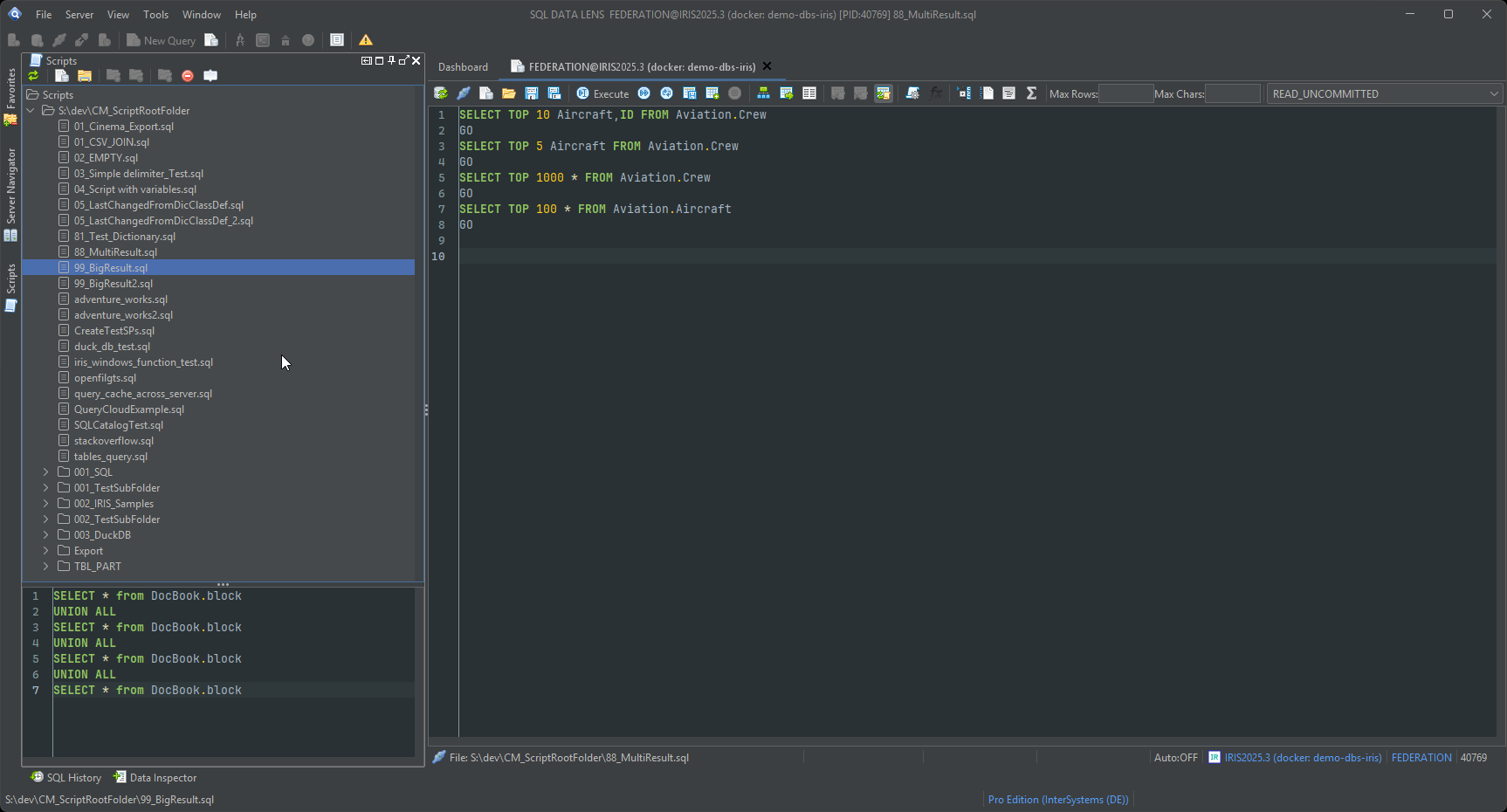
Work with many statements in one file: GO
GO is not sent to the database. It is a batch separator that the
editor recognises: the current batch is every statement entered since the last
GO, or since the top of the script if this is the first one. That
single convention makes a long working script navigable, and it is the same
convention a SQL Server developer already has in their fingers.
Three execution modes cover everything you need from there:
- F5 — execute the statement at the cursor. Put the caret anywhere inside a statement and run it; no selecting required.
- F7 — execute the next statement and move on.
- F9 — execute the whole script, every batch in order.
A selection is also honoured, so highlighting two statements and running just
those still works. Any statement the database and the driver will accept can
be executed, including DDL and stored procedure calls, and the results pane
shows the database's own messages and error codes rather than a generic
wrapper — the SQLCODE and the IRIS message text, as returned.
The separator stays GO and will not become ;, for a
reason worth stating: on IRIS and Caché the semicolon is the ObjectScript
comment character, so splitting a script on it would tear procedure and trigger
bodies apart. A script that looks like several semicolon-separated statements
gets a small, dismissible hint rather than a silent surprise.
Stop stops. Pressing Stop during a script run cancels the
running statement and leaves the rest unexecuted — until 4.02 the
statements after it still ran, so a script that went on to write could change
data you had just stopped it from changing. The message panel says where the
run stopped, which statements were skipped and whether a transaction is still
open, so with auto-commit off you decide what happens to the changes so far.
And the row count reported for a statement is now its own: an INSERT
after a ten-row query is no longer reported as "11 row(s) affected".
Code completion that reads your data model
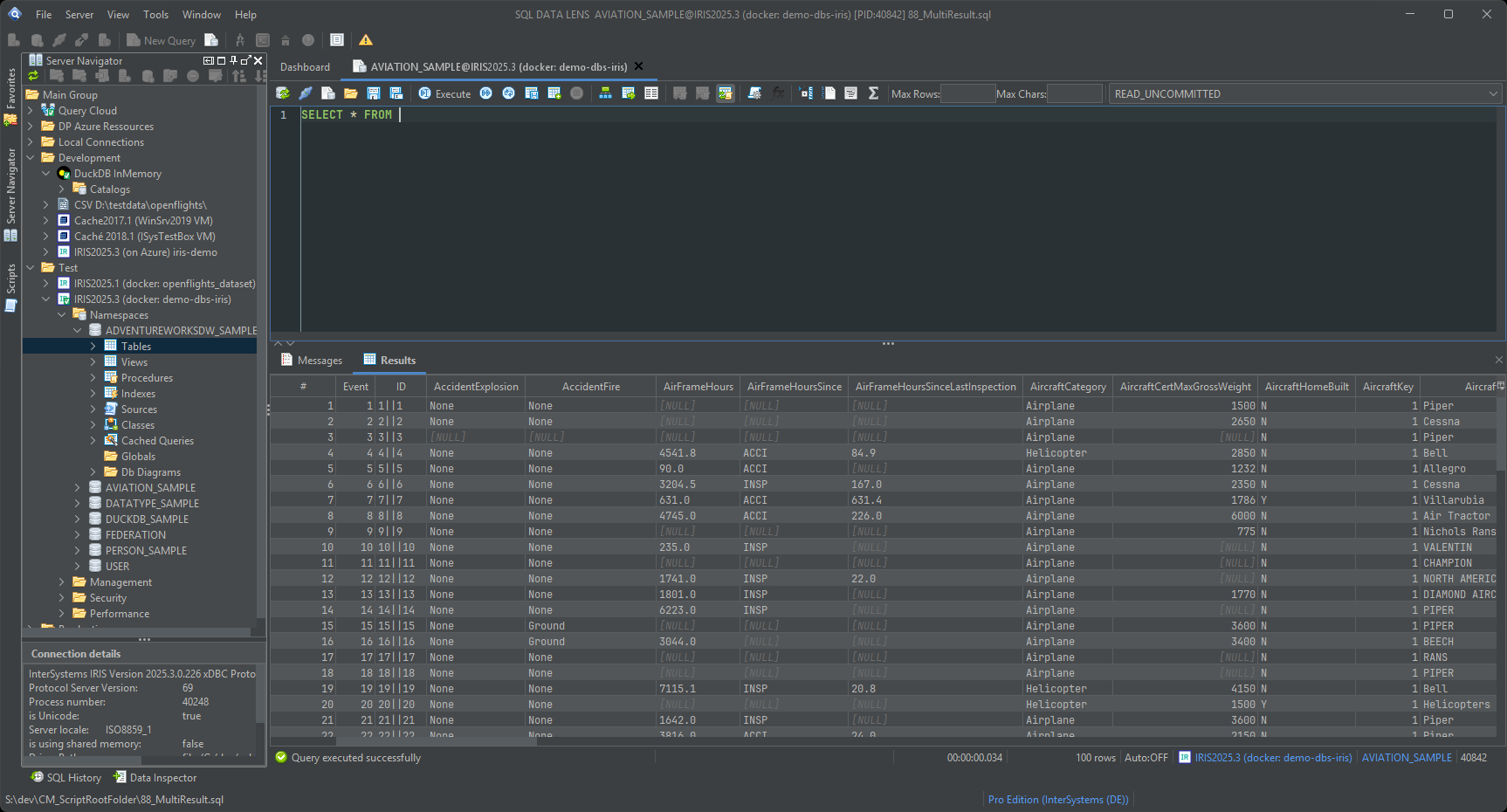
The point of completion is to keep you from leaving the editor to go and look something up. The drop-down appears after a delimiter such as a full stop or a comma, or whenever you press Ctrl+Space, and it offers tables, views, functions, procedures and — once a table is in scope — its columns with their data types.
What it shows comes from the data model rather than from a static keyword
list. If you keep documentation in the remarks property of a class or a
property, it appears in the completion window, and hyperlinks inside that
remarks text stay clickable — so a table comment that points at a ticket or a
wiki page is one click away while you are writing the query. Completion also
covers IRIS-specific constructs that are easy to mistype, including
SET OPTION and the optimisation hints, each with its help text
attached — and each only where IRIS actually allows it, so
SET OPTION names appear right after you type
SET OPTION and optimiser hints only in the FROM
clause or after JOIN, rather than in every list everywhere.
Non-InterSystems connections get a generic completion provider so the
behaviour is consistent when you switch to SQL Server for an hour.
Completion also says what it knows, which is the difference between a tool you trust and one you second-guess. When it has nothing to offer, the first line of the list reads metadata: ready, metadata: loading or metadata: unavailable with the reason — a name it cannot resolve is never reported as "no columns found", and the list is never silently empty. The same state sits in the editor status bar next to Auto:ON/OFF, so you can see whether the model is current without opening the list at all. Every entry carries a description: a column shows its type and the table it came from, a table its schema.
JOIN suggestions earn their own mention. Right after
JOIN, tables connected by a declared foreign key are listed first;
with the cursor in the ON part, a ready-made condition built from
that foreign key is the first entry, or press
Ctrl+Alt+J to insert it directly. Without a
foreign key, a condition guessed from column names is offered instead — always
marked as a guess.
Highlighting, folding and formatting for IRIS SQL
Syntax highlighting is maintained against the IRIS keyword set, not a generic
ANSI one — window functions, LOAD DATA and the newer IRIS
keywords are highlighted as keywords rather than as identifiers. Alongside
that the editor gives you parenthesis matching, code folding for long
statements and blocks, go-to-line, and a built-in SQL formatter that takes a
statement someone pasted in as one 400-character line and turns it into
something reviewable.
Parameterised scripts are supported, so a script you run weekly against different accounts does not need editing each time:
SELECT ID, Name, LastModified
FROM   Sample.Person
WHERE  Company = ?
AND    LastModified >= ?
ORDER  BY LastModified DESC
The editor prompts for the parameter values on execution and keeps them for
the next run, which is both faster and safer than pasting literals into the
WHERE clause.
A font chosen for reading code
The editor and the rest of the application use JetBrains Mono. Character widths stay standard, so lines break where a developer expects them to, but the height of lowercase letters is maximised for legibility at small sizes. The practical benefit shows up in the characters that cost you the most debugging time: the zero has a dot inside it and the capital letter O does not, so a mistyped identifier is visible instead of plausible.
An AI Assistant that reads your schema, not your rows
New in 4.02, an AI menu between
Tools and Window adds three actions to the active
editor: Generate SQL from description…,
Explain statement, and
Explain execution plan. On IRIS and Caché the
explanations carry real depth — maps, master-map scans, bitmap versus
standard indexes, whether TuneTable statistics still look
current — on top of what a general-purpose model already knows about SQL.
It runs on your own API key — Anthropic, OpenAI, Azure OpenAI, or a self-hosted OpenAI-compatible endpoint — configured under Tools > Settings… > AI Assistant, and it is off by default for every connection until you opt in on that connection's AI tab. No row data and no credentials are ever sent, SQL literals are masked by default, and a preview always shows the exact text before it leaves the machine. Full details, including what is sent and what never is, on the AI Assistant page.
Results: grid, text, several at once
Results display as a grid or as plain text, switchable from the toolbar — text
output is what you want when you are pasting an answer into a ticket. Stored
procedures that produce multiple result sets are handled properly, with each
result set on its own tab, and SQL DATA LENS can generate the
CALL script for a procedure from its metadata. For diagnosing
type problems it can also generate SELECT variants that wrap
every result column in %ODBCIN, in %INTERNAL, or in
CAST(col AS VARCHAR(255)) — three different views of the same
procedure output, which is usually enough to identify which column is lying
about its type.
Working with the grid itself:
- Calculate selected cells — select a range in a numeric column and get count, min, max, avg and sum without writing an aggregate query.
- Copy pretty formatted — copy a result block as aligned text that survives being pasted into an email.
- Sorting in the grid, and a refresh that runs while data is still being fetched.
- Double-click any cell to open it in the Data Inspector as text, HTML, XML, JSON, an image or raw binary.
What the statement cost, next to the row count
On IRIS and Caché, the bar under the result shows more than rows and elapsed time: global references, commands executed, disk reads with their latency, and the name of the generated cached query class. Global references are the honest measure of what a statement cost — two queries that both took 1.2 seconds are not the same query if one touched forty times as many globals.
The class name is clickable: it opens that query in the Cached Query Analyzer, or right-click for the generated class source, the plan, a MONLBL command line, or to purge it. A script run shows the sum plus one line per statement in the Messages tab. The numbers also become a sortable Global refs column in the SQL History and part of its CSV export. The chart button in the toolbar turns the bar on and off, and what new editors start with is a setting. More on reading these numbers on the SQL performance page.
A related line answers the other common "why is this slow?": while a result is
still loading, the status line names the stream columns it is
reading. Long text and binary values cost an extra server round trip per row on
IRIS and Caché, and they are the usual reason a fast query still takes minutes.
Hover for the detail, then name the columns you need instead of
SELECT *, or lower Max Rows.
Execution plans and cached queries
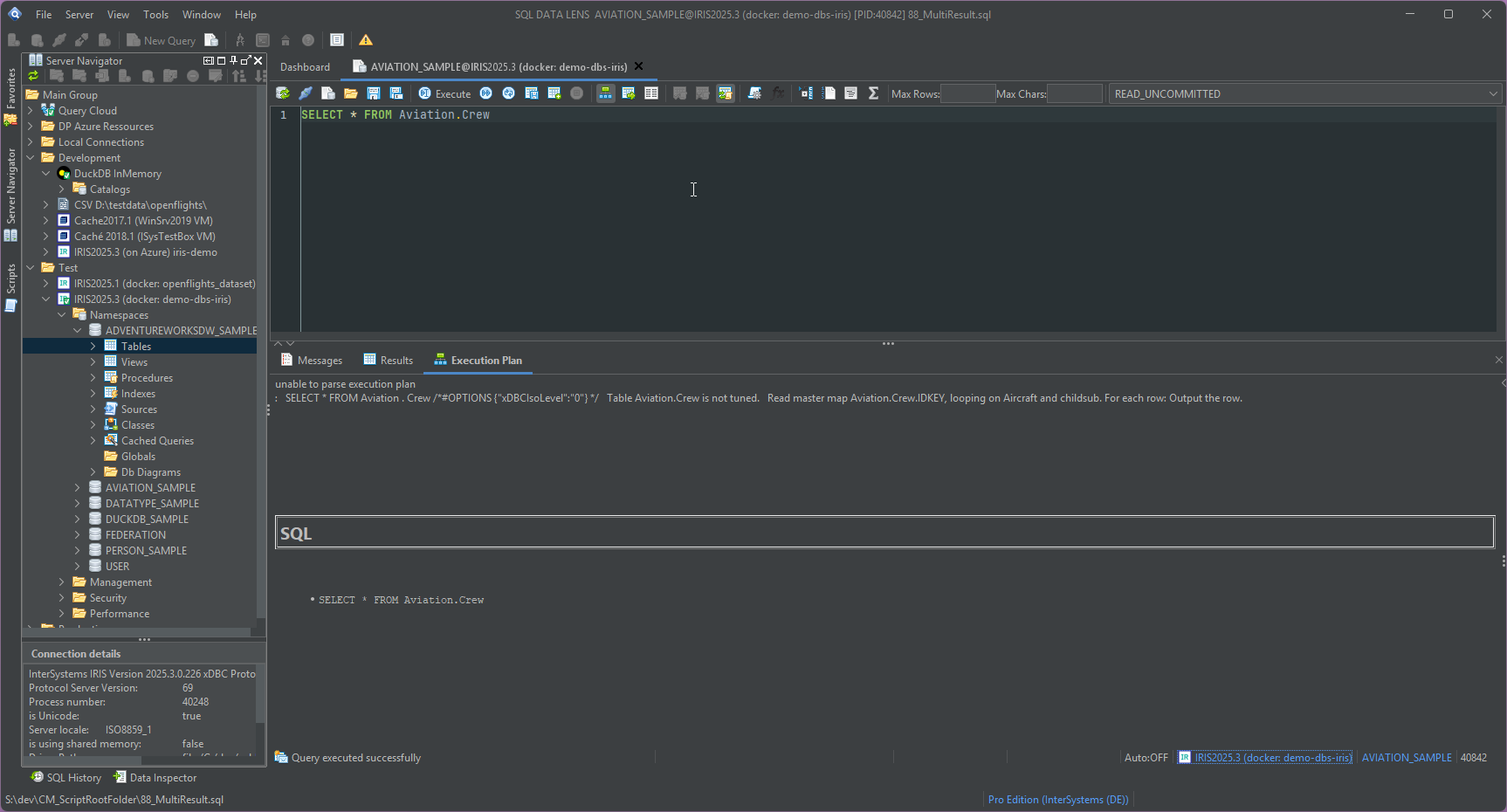
The execution plan is available directly in the editor, including the plain plan for IRIS, so you do not need to detour through the Management Portal to find out why a statement chose the index it chose. Because IRIS caches statements as classes, the plan you are reading and the cached query the server is actually running can drift apart; the cached query list and the tooling for clearing it live on the SQL performance page.
Results too big for a grid
Two commands handle results that are not meant to be looked at row by row.
Execute to file writes rows from the database straight to the export file without buffering them in memory, so a 40-million-row extract runs in a flat, small memory footprint instead of running the application out of heap. Read errors do not abort the run: a value that cannot be read is reported and the export continues with the next one, which matters on legacy data where a handful of rows were written past the object layer.
Execute to table writes the result of a statement into a
newly created table on the server. Nothing travels to the client at all — for
IRIS this uses CREATE TABLE <table> AS SELECT … — which
makes it by far the fastest way to materialise a working set you intend to
query several more times.
Grid results export to CSV, HTML, XLS, XLSX, XML, SQL, TEXT and JSON, and
Open in Excel sends the current grid to Excel natively with
one click. Two limits guard the round trip in the first place:
max rows caps how many rows are fetched from the server and
max chars caps how much of a character or stream column is
fetched. Both are remembered across restarts; clear the field to remove the
limit. Where a driver ignores the JDBC setMaxRows hint — DuckDB,
for instance — the limit is applied as TOP or LIMIT
instead, so it holds regardless of the backend.
Sessions, history and connections
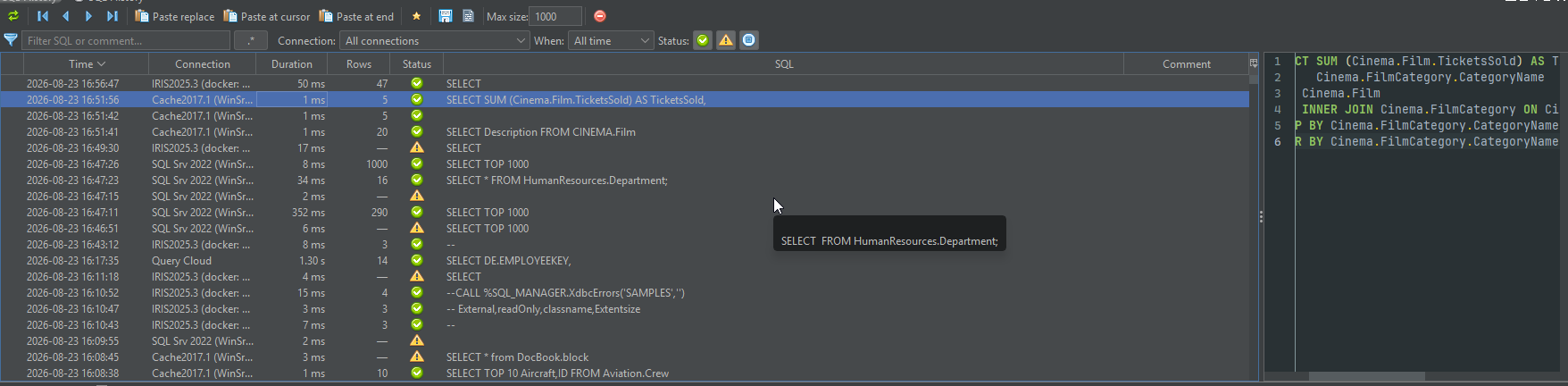
Session snapshot makes a restart cheap: closing SQL DATA LENS saves every editor tab with its content and its connection, and reopens all of it on the next start.
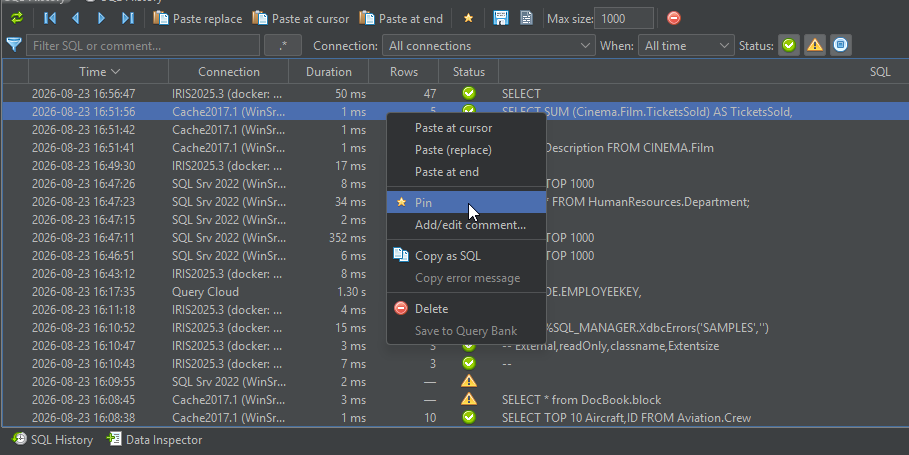
SQL History is a sortable, filterable table rather than a
day-by-day tree: pin marker, time, connection, duration, row count, status, an
editable comment of your own, and on IRIS the global references the statement
cost. A quick filter searches SQL and comments, with an optional regular
expression; separate filters narrow by connection, time range and status.
Failed and cancelled statements are recorded too, not only successful ones —
use the status filter if you prefer the old success-only view. Entries export
as .sql or .csv, pinned entries survive the size
limit, and anything worth keeping permanently belongs in the
Script Manager.
Several connections can be open at once and database communication is asynchronous, so one slow query does not lock the interface. A connect button on the toolbar switches an editor to another server or database without reopening it, and the connection name in the status bar is a hyperlink back to that connection in the Server Navigator.
The editor tab also carries the colour and badge of the connection's
environment — [DEV], [TEST], [PROD] — so
the server you are about to write to is visible in the thing you are looking at
rather than in a tree you last checked an hour ago. On a connection marked
read-only, the editor passes only statements it can recognise as read-only and
the grid stays uneditable. See
environments and read-only.
Error handling is configurable, which sounds dull until you meet a table where one row in ten thousand holds a value its metadata says is impossible. By default reading a result set stops at the first bad cell and reports its row and column, together with a best-effort string rendering of the offending value. A toolbar toggle switches that behaviour globally so a survey query can run to completion and show you every affected row at once.
The editor is where most of a working day goes, so the details in it compound: a completion list that knows your remarks, a plan you can read without leaving the window, and an export path that does not care how large the result is. Download SQL DATA LENS and run your own worst query through it.
Explore your IRIS data from SQL down to globals
Download, unzip, connect. Your first namespace is on screen in about three minutes.
Windows 10, 11 and Windows Server (64-bit) · ~130 MB · version 4.02 · full 30-day Pro trial included