
Data Inspector
Read the value inside the cell
Open any cell as text, HTML, XML, JSON, an image or raw binary — useful the moment a column holds more than a number.
- Double-click any cell
- Text, HTML, XML, JSON, binary
- Renders BMP, TIFF, PNG, GIF, JPEG
- Syntax highlighting for HTML and XML
A grid cell is about forty characters wide. That is fine for an amount or a
surname, and useless for the columns that hold the interesting data on an IRIS
system: an HL7 message, a serialised object, a stored PDF, a scanned document,
a JSON payload from an integration, an XML configuration fragment. In most SQL
clients those cells read <stream>, or a few hundred
characters of something with the rest cut off. The Data Inspector exists so that
a cell is something you can actually read.
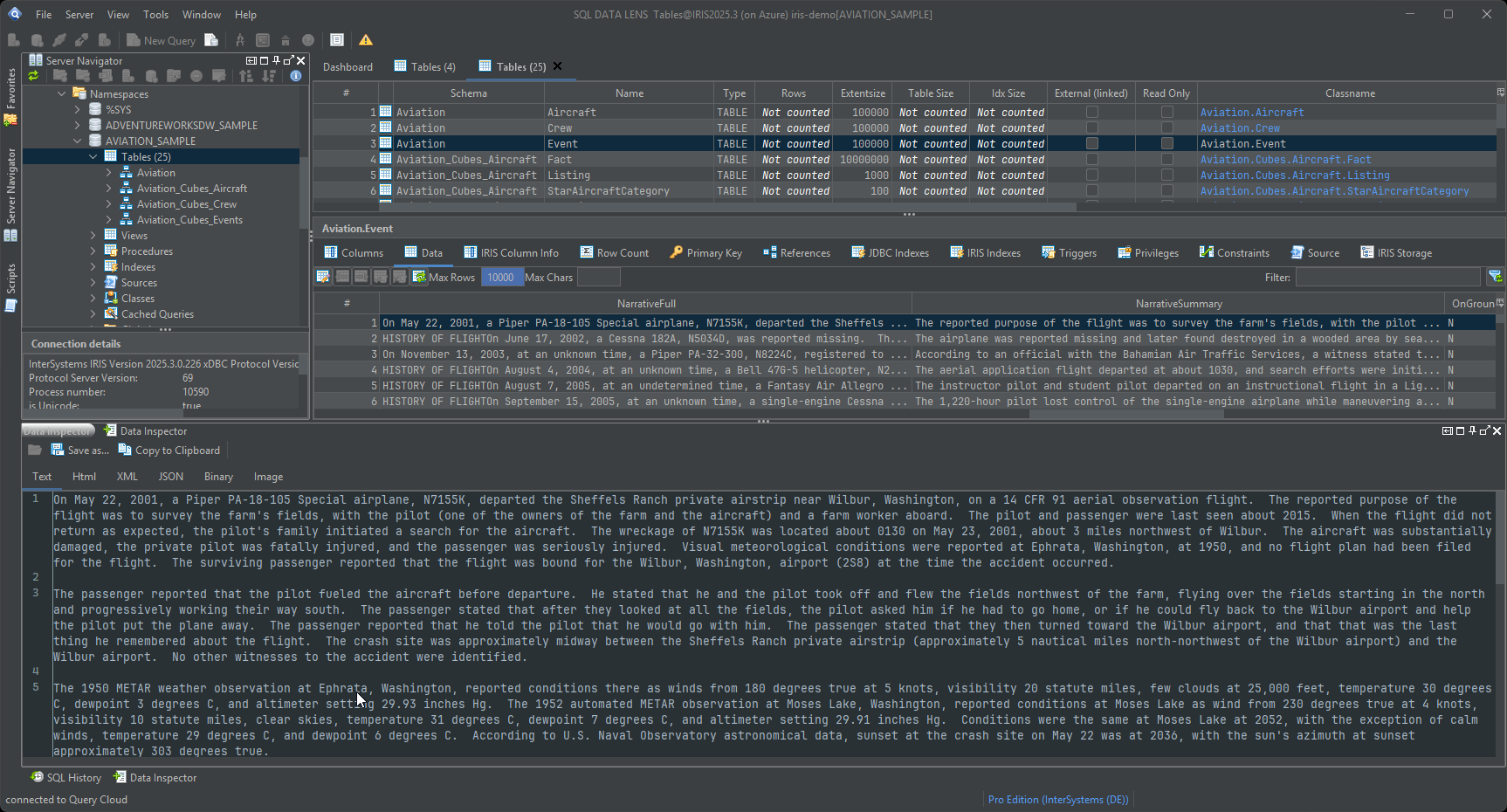
Double-click, and read the whole value
Click or double-click any cell in a result grid or in the Table Viewer and its content opens in the Data Inspector. The complete value is shown, not the part that happened to fit the column width, in a pane you can size and scroll. It works the same way everywhere a grid appears, so the gesture is worth learning once.
Six ways to read the same value
Choose the view that suits the content:
- Text — plain content in a monospaced font, with the line breaks and whitespace intact. The right choice for log fragments and for anything you want to compare character by character.
- HTML — syntax-highlighted markup, so the structure of a stored fragment is visible instead of being one long line.
- XML — syntax-highlighted and indented. This is the view that earns its keep on integration data, where a message is technically one string and practically a document.
- JSON — for dynamic-object data and payloads stored by integrations or REST endpoints.
- Binary — the raw bytes, which is where you go when a value is
not what its column type claims. A stream that starts with
%PDForPKtells you what you are really holding. - Image — renders the value as a picture. BMP, TIFF, PNG, GIF and JPEG are supported, so a photograph or a scanned document stored in a stream property can be confirmed in place.
Switching views does not re-query anything; it re-interprets the value you already have. That is what makes the inspector a good diagnostic tool — you can look at the same bytes three ways in a few seconds and work out which interpretation the application intended.
Where it fits with the max-chars limit
The Table Viewer and the SQL editor both apply a max chars limit, which caps how much of a character or stream column is fetched from the server. That limit is what keeps a table full of multi-megabyte documents from taking a minute to open, and it is exactly why a per-cell viewer is needed: you browse cheaply with the limit in place, then open the one cell you care about in full. Clear the max-chars field when you need the entire value.
When the value contradicts its metadata
On older systems, some values were written past the SQL and object layers and no
longer match what their column definition promises. The editor reports the row
and column of such a value and makes a best-effort attempt to render it as a
string; the Data Inspector's binary view is where you then see what is genuinely
stored. For a property packed into an IRIS
$LISTBUILD structure, the
Global Browser decodes the whole node
into its individual fields — the two tools answer the same question from
different ends.
Small feature, disproportionate effect: it is the difference between "this column contains a stream" and "this column contains a 1.2 MB TIFF from 2009 with the patient's name in the header". Download SQL DATA LENS and double-click the widest column in your schema.
Explore your IRIS data from SQL down to globals
Download, unzip, connect. Your first namespace is on screen in about three minutes.
Windows 10, 11 and Windows Server (64-bit) · ~132 MB · version 4.02 · full 30-day Pro trial included