
Server Navigator
Every server, every namespace, in one tree
Group your connections however your organisation works, and see all namespaces without configuring a single JDBC URL.
- All namespaces listed automatically
- Search connections as you type
- 9 InterSystems drivers bundled
- Connection details as a sortable, copyable grid
- Groups for servers and environments
- No CLASSPATH editing
Most sites do not have one InterSystems server. They have a development box,
an integration box, two production members and something nobody has touched
since 2014 — each with a handful of namespaces, each on a different version.
In a generic JDBC client that becomes a flat list of thirty connection
entries with names like prod2-hs-ens, one per namespace, and a
driver JAR problem every time a new server joins the estate. The Server
Navigator exists to make that list manageable again.
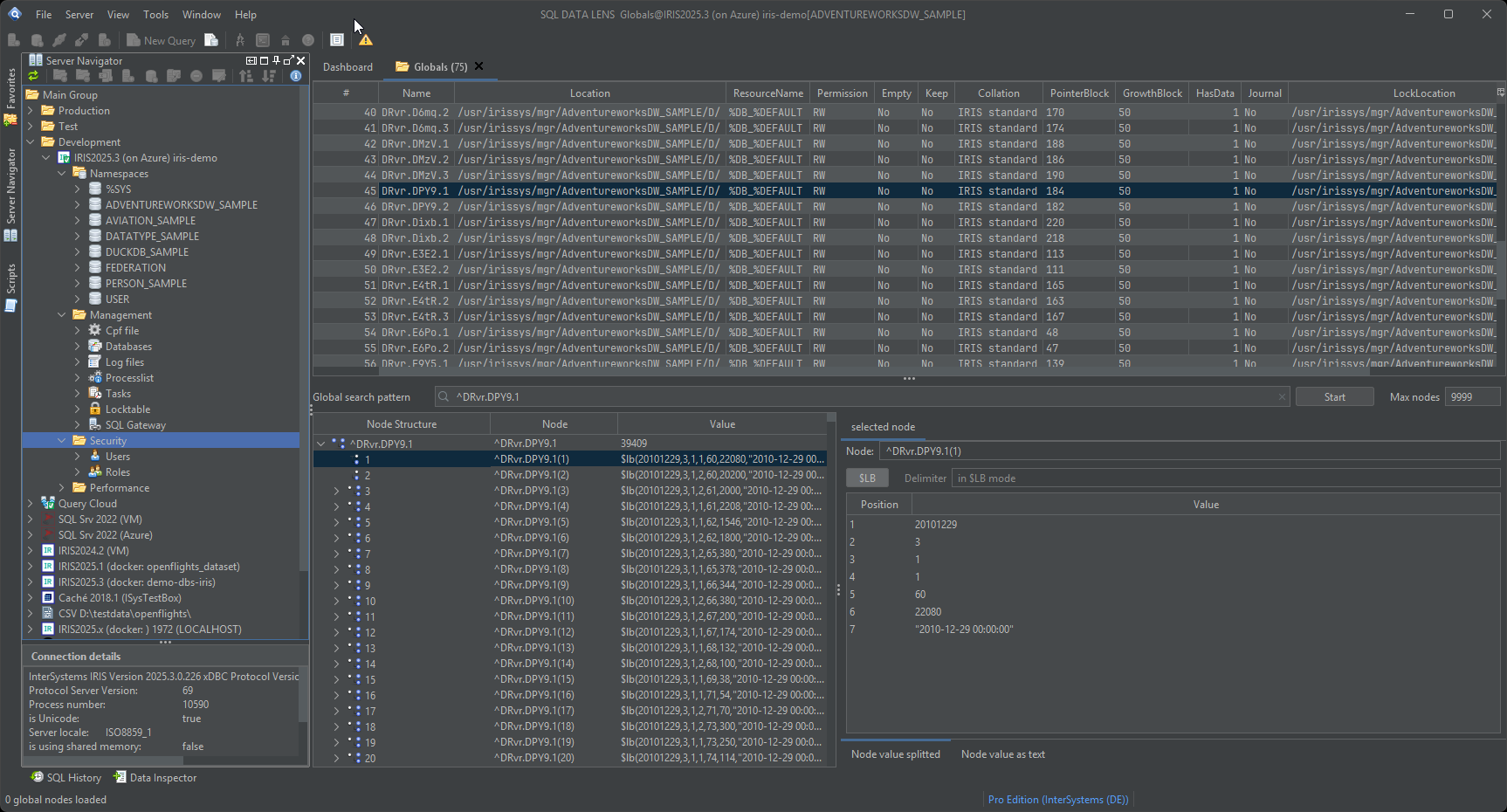
One tree for every server, namespace and object
The Navigator is a tree for browsing and managing database objects, and it is the spine of the whole application. From it you reach tables, views, globals, classes, indexes, constraints, stored procedures, functions, cached queries and database diagrams. Objects in a namespace are introspected and presented in folders grouped by schema, so a namespace with four hundred tables across twelve schemas still reads as twelve folders rather than four hundred rows.
Connections can be organised into groups, which is the part that matters once you pass ten of them. Group by environment, by customer, by data centre — whatever mirrors how you think about the estate. The interface concept is deliberately close to SQL Server Management Studio, so if you come from a Microsoft background the layout needs no explanation, and if you come from InterSystems the terminology is the one you already use.
A group is a name, though, and a name is only as good as your attention. So a connection also carries a classification — Development, Test, Production or Failover — with its own colour in the tree and a text badge beside it, and the same colour travels onto the tab of the editor you open from it. An independent read-only guard sits next to the classification for the servers nobody should be writing to. That is environments and read-only, new in 4.01.
Every namespace, without knowing its name
Register a server once and every namespace on it is listed for you. There is no namespace name to remember, no separate JDBC connection to configure per namespace, and nothing to update when a namespace is added on the server. Namespace state is visible in the tree itself:
- Remote namespaces — a namespace whose data lives in a database on another system — are marked with a link icon, so you can see at a glance that you are about to query across a network hop.
- Unavailable namespaces are marked with a red cross. A dismounted database or a namespace you have no privileges for shows up as a state in the tree instead of as an error dialogue three clicks later.
When you test a connection, the result is capped at the first five namespaces. That keeps the confirmation dialogue readable on servers that host dozens of them.
The drivers are already in the box
9 InterSystems JDBC drivers ship inside the application: 8 IRIS versions covering 3.3 to 3.11.0, plus the Caché 2018.1 driver. They are loaded side by side in isolated classloaders, which is what makes it possible to have a 2018 Caché instance and a current IRIS instance open in the same session without the two drivers fighting over class names.
Drivers for other systems are bundled too — Microsoft SQL Server (which also covers Azure SQL and Microsoft Fabric), PostgreSQL, MariaDB, DuckDB, SQLite, H2, HyperSQL, Microsoft Access, Microsoft Excel and CSV. There is no CLASSPATH to edit, no JAR to hunt down on a vendor site and no version matrix to maintain by hand. The handful that are not in the download — Trino, Databricks, Firebird, Apache Derby — keep their entries in the list, and Tools > Manage Drivers… > Get Driver File… fetches the file, checksum-verified, into your user folder. For generic JDBC connections the connection dialogue shows worked example URLs for each supported system.
Connection details can be copied or sent to a colleague straight from the context menu — and since 4.01 a connection or a whole group can be exported as a team profile, a readable file that carries the connection details and no credentials at all. See secure connections.
Import the connections that are already on your machine
If Caché or IRIS is installed locally, you do not need to type any of it in. Choose Tools → Import Caché Connections and the locally known server registrations are read and turned into SQL DATA LENS connections. Host, port and the matching driver version are all filled in from the local configuration. The only thing left for you to enter is the password.
Connections that stay out of your way
The Navigator uses its own database connection, independent of any open editor, so browsing the tree never blocks a query and a long-running statement never freezes the tree. Each SQL editor holds exactly one private connection — earlier versions opened a second public connection just to read namespace metadata, which made editors slow to open; that is gone. Stored procedures, which are the slowest folder to enumerate on a large namespace, are loaded asynchronously.
For InterSystems connections the Navigator also surfaces the details that normally require a look at the server: whether the connection uses shared memory, whether the server is local, and the driver and protocol versions actually in use — worth checking before you trust a version number a driver reports about itself.
The panel it lives in
Server Navigator, Scripts and Favorites start as tabs of one panel on the left, Navigator in front, so all three sit the same way from the first start. The Window menu has a checkbox for each tool window — those three plus the Data Inspector and the SQL History — and Reset Tool Windows to Default, also on the General page of Settings, puts all five back where they started after you have dragged, undocked or closed them. Any of them can be pulled out into its own window, which is what the second monitor is for.
Finding a connection instantly
Once a tree has a few dozen connections in it, scrolling to find the one you want stops being instant. Since 4.02 a search box sits above the tree — placeholder Search connections... — and filters as you type: connection name, group name, host or user, contains and case-insensitive, so typing a group name shows every connection in it. Matching groups expand automatically and collapse back to exactly how they were once you clear the box; a search that finds nothing says so instead of leaving you looking at an empty tree wondering whether it is still there. Ctrl+F jumps into the box while the Navigator is active, Esc clears it, and Arrow Down/Enter jump to, or open, the first match.
The search only looks at what is already known locally — it never connects to a server or loads metadata, and it never changes a saved connection. For what is inside a connection once you are in it — a table, a view, a column — that is the object search covered below, not this box.
What is actually going on with this connection
Since 4.02 the connection details panel in the lower-left corner is a sortable, copyable properties grid rather than a block of text — right-click any row to copy it. Depending on the connection type it lists host, port, namespace or database, user, driver, product version, whether the connection is marked read-only, and an Encryption row that names what is actually protecting the session: TLS with the certificate verified, TLS trusting an unverified certificate, plain text, a local shared-memory connection where encryption does not apply, or, when SQL DATA LENS left the choice to the driver's own default, an honest driver default — encryption state unknown rather than a guess.
Selecting a connection never opens it — that has always been true, and it stays true here: a connection that is not currently open shows its configured settings and a plain not connected state, never an empty panel and never a stale reading from the last time it was open. Opening a connection just to populate this panel would cost an IRIS license seat for a connection you may not even want to use. Once a connection is open, a Stand hh:mm:ss timestamp shows when the details were actually read, with a Refresh button next to it. Switch to a SQL editor tab and the panel follows that editor's own, separate connection instead — job/session ID, autocommit state and whether a statement is currently running — falling back to whatever you last selected in the tree once you switch away from the editor.
The same release also fixed the two rough edges that used to make expanding a large Namespaces or Catalogs node unpleasant: the window no longer freezes while the server answers — the node shows "loading..." and fills in as it arrives — and clicking that "loading..." placeholder itself no longer throws an error or breaks tree selection for the rest of the session. Most noticeable on a slow link, and on Azure SQL Database, where the list of databases has to be read from the server every time.
Finding a thing you cannot see
A tree is the right shape for browsing and the wrong shape for "where is that
column called PatientMRN?". The search field at the right of the
toolbar (Ctrl+Shift+F), and
Search… on a namespace or catalogue, search the schema itself —
tables, views and columns by name, across every schema — on
every connection, not just InterSystems. On IRIS and Caché a
second tab searches the classes and routines on the server as well. See
search.
Where you go from the tree
Every other part of the application is opened from the Navigator: the SQL editor against the namespace you have selected, the Table Viewer for a table, the Global Browser for the storage beneath it, the administration views for the instance, and database diagrams from a folder in the namespace itself. Non-InterSystems systems appear in the same tree and behave the same way — see Beyond IRIS for what that covers.
Setting up the Navigator is the first ten minutes with SQL DATA LENS, and for a local installation it is closer to one. Import your existing connections, group them the way you think about them, and the rest of the tool has somewhere to start from. Download SQL DATA LENS for Windows and register your first server.
Explore your IRIS data from SQL down to globals
Download, unzip, connect. Your first namespace is on screen in about three minutes.
Windows 10, 11 and Windows Server (64-bit) · ~132 MB · version 4.02 · full 30-day Pro trial included